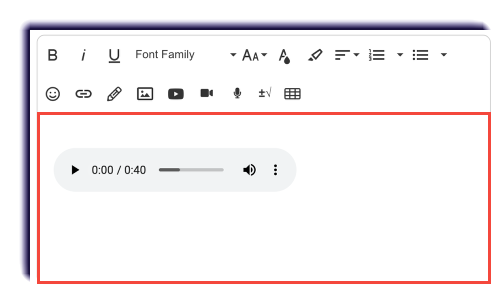
Students can record and upload audio and video submissions as part of their answers to assessment Essay questions and also as part of their workspace notes where they are allowed.
Video
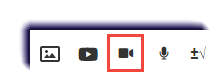
- Click the Insert Video icon
 .
. 
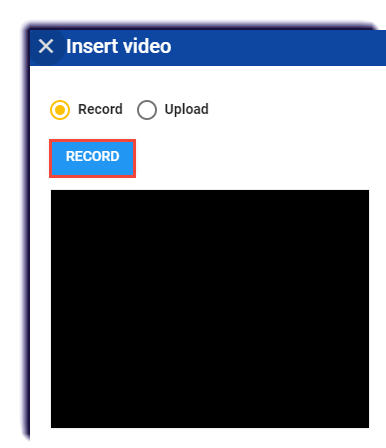
- Click Record Video.
Note
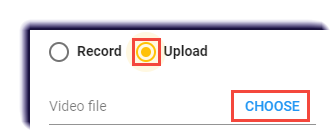
If already recorded, select Upload and then Choose. Find the file and jump to step 5.
- Record video submission.
- Click Stop.

- Click Insert.

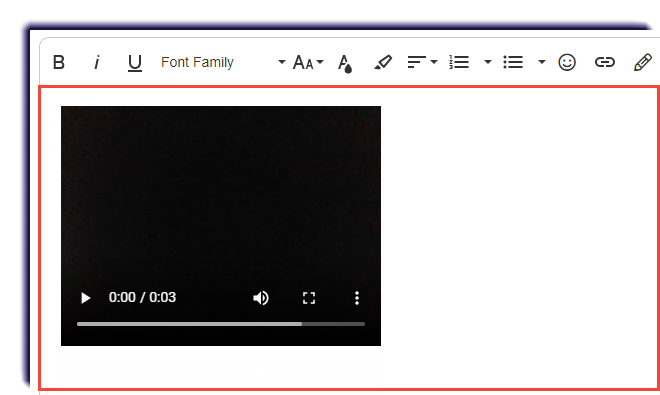
- The file is inserted into the editor field so students can add content.
Audio
- Click the Insert Audio icon
 .
. 
- Click Record.
Note
If already recorded, select Upload and then Choose. Find the file and jump to step 5.
- Record the audio submission.
- Click Stop.
- Click Insert.
- The file is inserted into the editor field so students can add content.