Use this page to learn how to change the status of a student's enrollment.
- Click Students.

- Filter to find the student and click Get Data OR enter the student's name in the search bar.
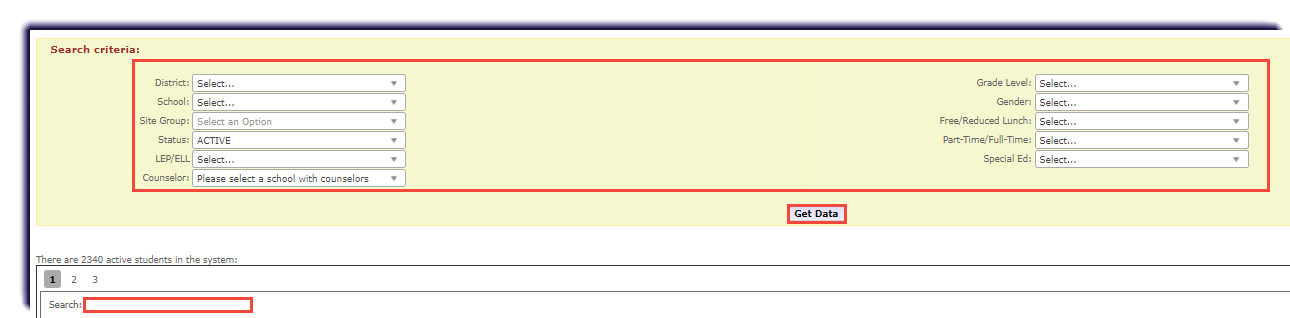
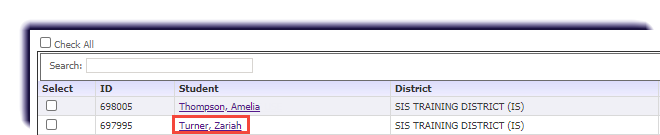
- Click the student's name.
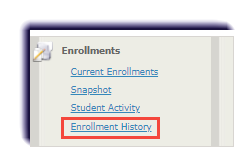
- Click Enrollment History.
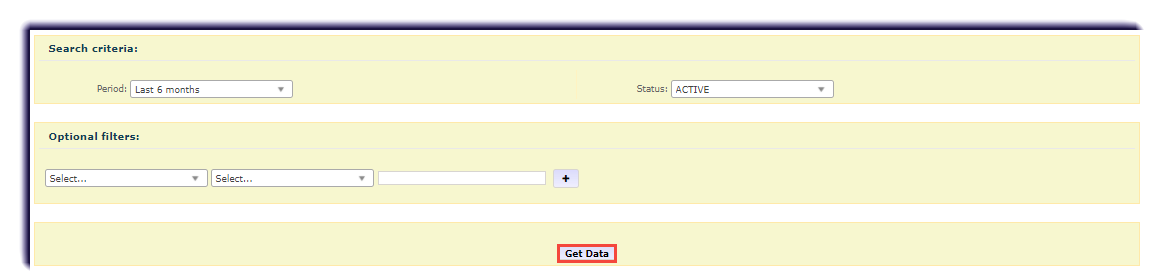
- Edit the search criteria to find a course.
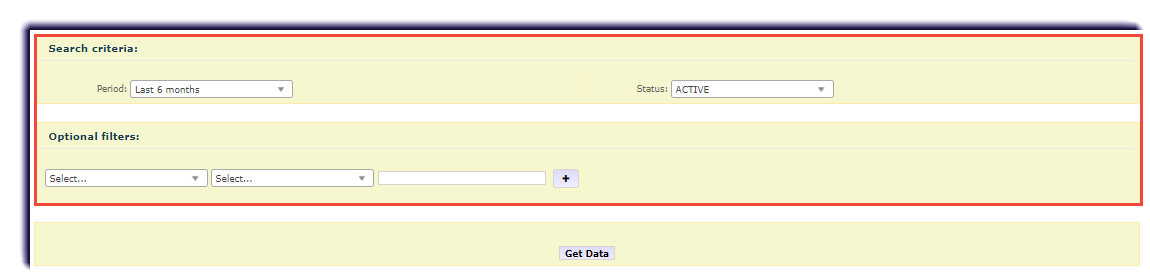
- Click Get Data.
- Select the Edit icon
 for the course.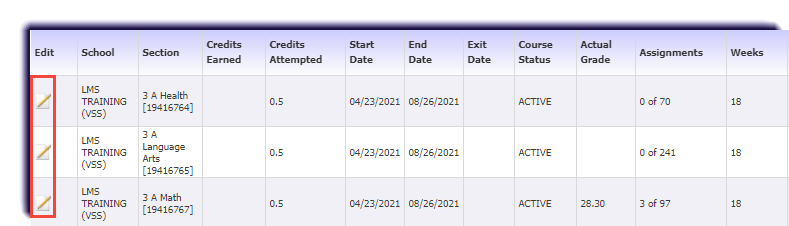
- Select a Status from the Status dropdown.

- Click Save.
Note
Once changed, the course will show on the student’s “current enrollments” screen. If made Active, it will also re-appear on the teacher’s roster. Courses and student statuses can always be updated by the district/school personnel. Please be sure to note the course length, dates, etc., for billing purposes, NCAA/AP regulations, etc.